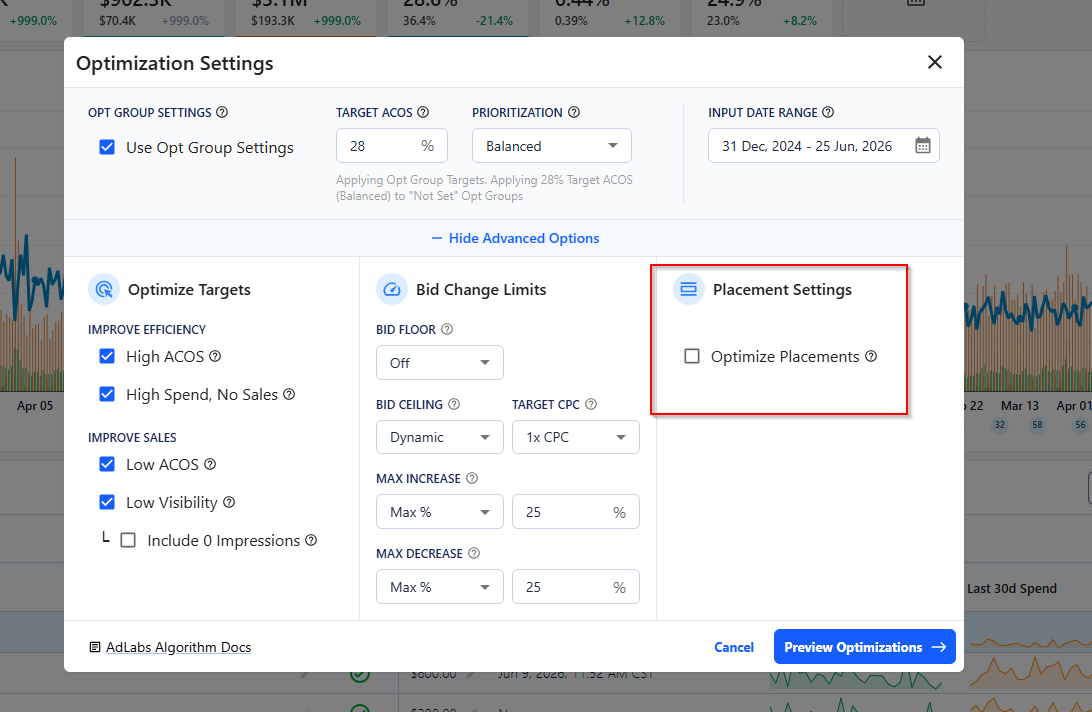
The Campaign Placement Modifier is a variable between 0.1 and 1 which is multiplied against your bids to reduce them when using our RPC bidding algorithm.
We use this reduction decimal because Amazon doesn't allow negative placement adjustments in Sponsored Products.
To get around this, AdLabs sets the worst-performing placement to 0%, scales the better placements up proportionally (based on placement CVR), and then reduces all keyword bids in the campaign with a single multiplier.

A mod of 1 means no reduction.
The mod is calculated from each placement's historical RPC (Revenue Per Click).
If your placement CVRs look like this:
Top of Search: 15% CVR (best)
Rest of Search: 10% CVR (middle)
Product Pages: 5% CVR (worst)
AdLabs sets Product Pages to 0%, scales TOS and ROS up based on proportional performance, and reduces base bids with the mod so the worst placement stays within your target ACOS.
The Bid Optimizer is using performance data to make recommendations, NOT current settings (i.e. the actual modifier percentage).
The adjustments you made yesterday haven't generated a single click yet so even if you change the modifier percentage, no new recommendations would surface.
In other words, the current placement modifier PERCENT is not a part of the formula, only the placement mod is.

Then there will be bid reduction from placements.
This is the default for any campaign you've never optimized placements for in AdLabs.
Base bids would increase significantly since they're no longer being reduced by 70%. If your placement percentage increases are still set high, effective CPCs could jump.

Never optimized placements in AdLabs? Your mod defaults to 1. AdLabs is not accounting for placement performance differences when calculating bids. The calculation will be the same whether placement optimization is on or off. This is the most common source of confusion.
Manually adjusted placements in Amazon? AdLabs does not import those changes. Only the Placement Mod value inside AdLabs is used.
You'll need the maximum bid modifier, which is 900% (not 100%), and then adjust base bids accordingly.
Set your Placement Mod to 1 and all placement percentages to 0%. This removes placement influence from the bid calculation entirely.
And when you run the Bid Optimizer, toggle off “Placement Settings”.