Once your Sponsored Ads account is connected, follow these steps:

Once your Sponsored Ads account is connected, follow these steps:
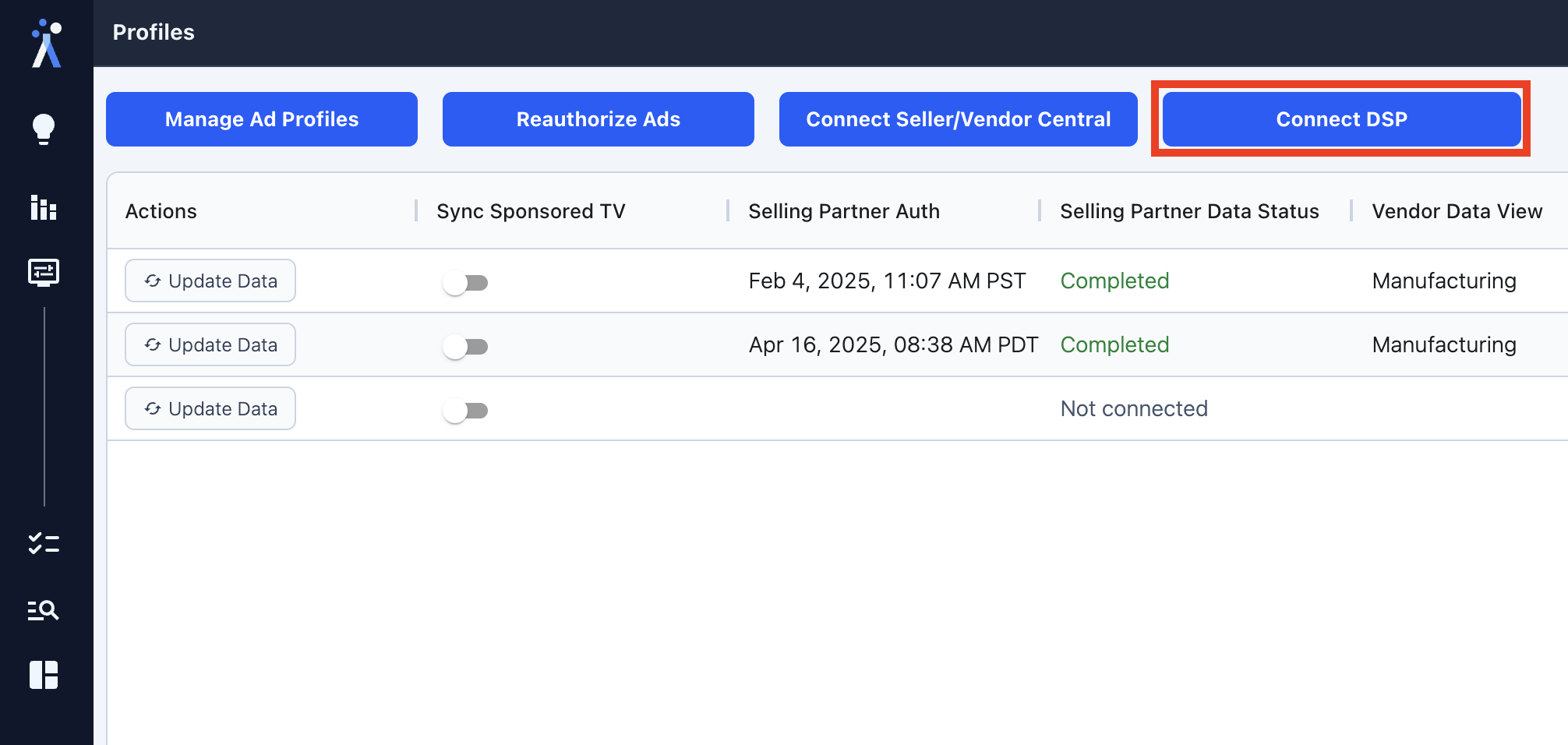
In AdLabs, navigate to the "Manage Profiles" section of the app
You will see your available DSP accounts listed alongside your Sponsored Ads profiles
Click "Connect" next to the DSP account you want to add
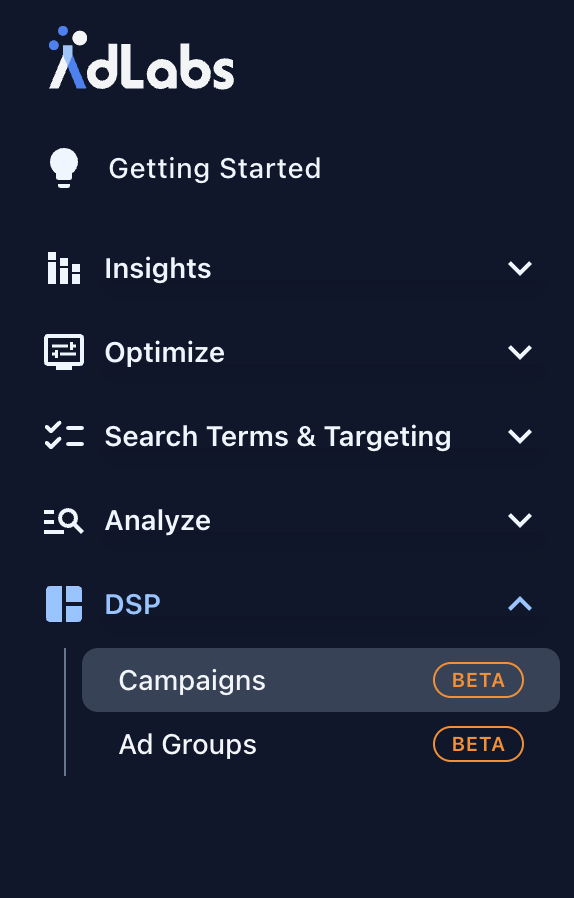
Once connected, a new DSP section will appear in your sidebar. From there, you can view your DSP Orders (campaigns) and Line Items (ad groups).
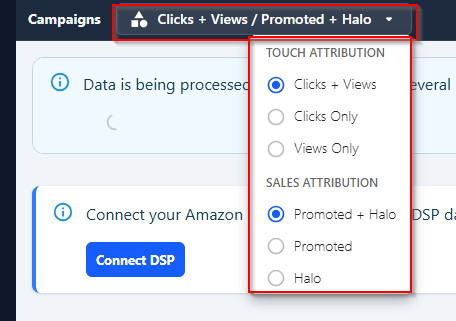
You can also change your preferred attribution method at the Order and Line Item level.
If your DSP account is not showing up in the Manage Profiles section, the most common cause is insufficient permissions in your Amazon Ads account. The user whose credentials are connected to AdLabs must have the correct access level on the DSP account.
To check and update your permissions:
Log into Amazon Ads and navigate to Administration > Account access & settings
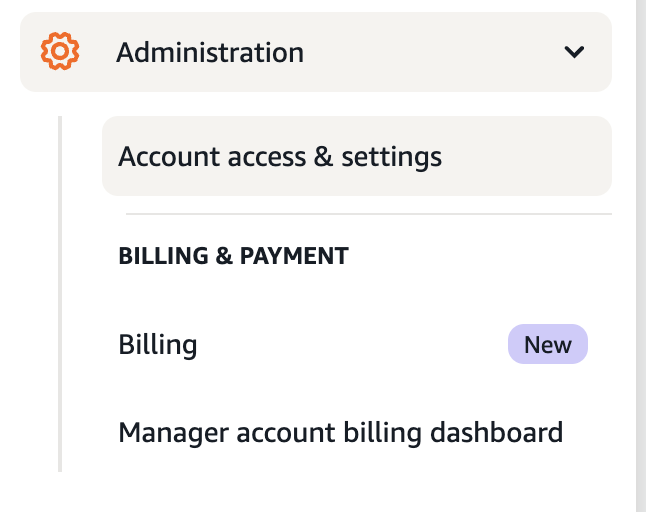
Click on "Accounts" in the left sidebar to see all DSP accounts under your manager account
Click "Manage settings" next to the DSP account you want to connect
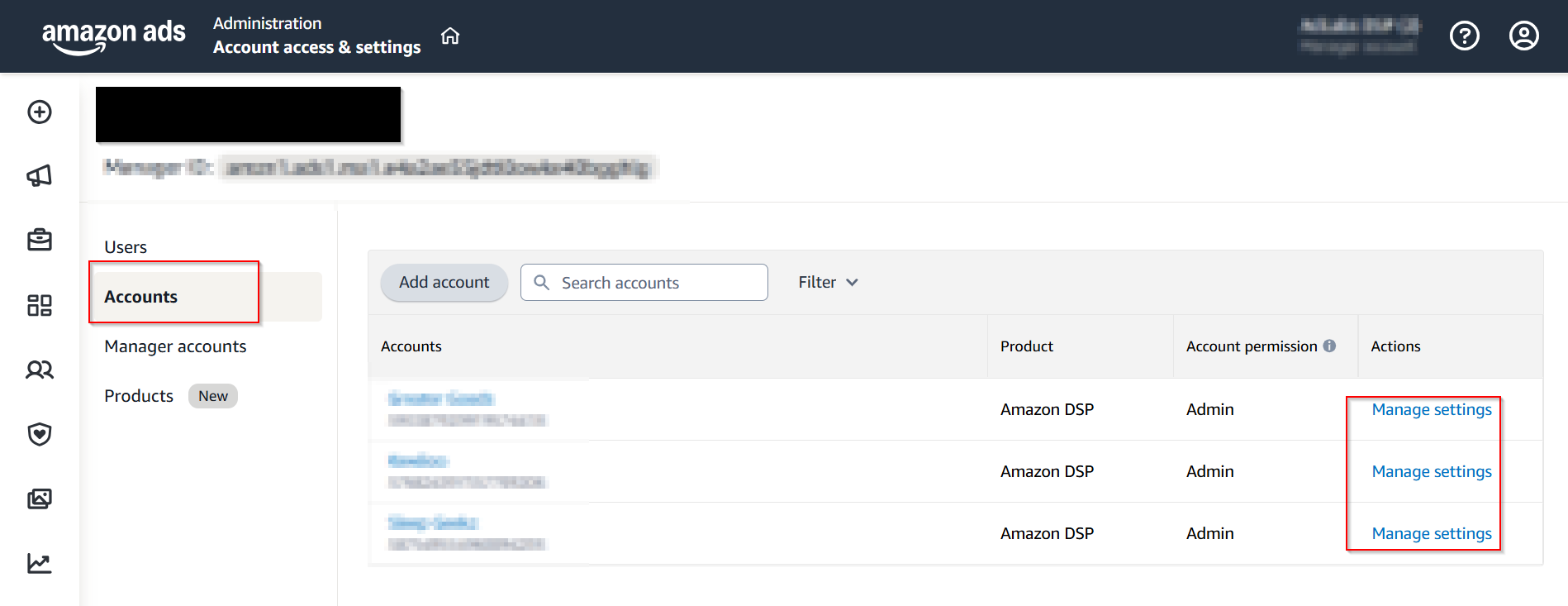
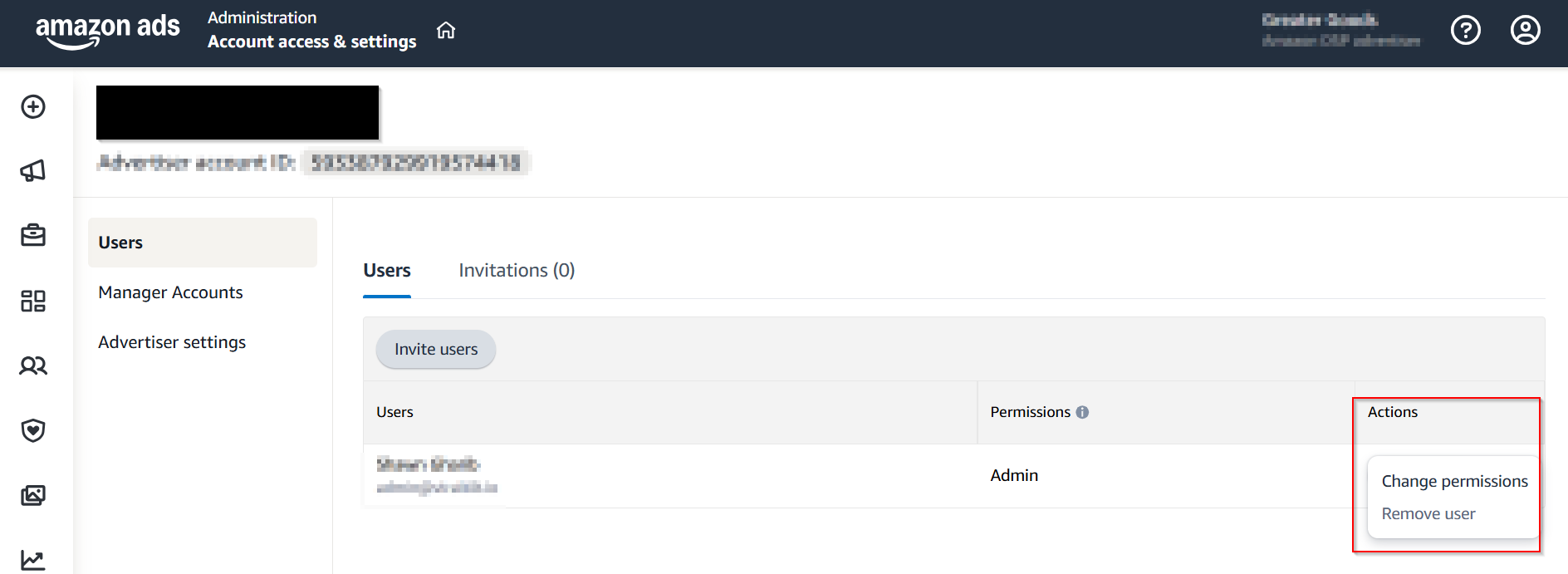
Go to the "Users" tab and find the user whose credentials are connected to AdLabs
Click "Change permissions" next to that user
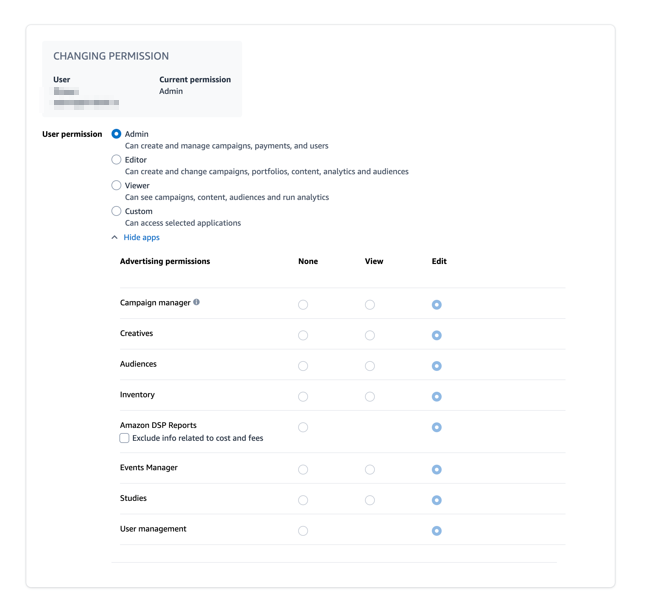
Set the user permission to "Admin", or if using "Custom" permissions, make sure the following are all set to "Edit":
If you have a standalone DSP account that is not linked to any Amazon Advertising (Sponsored Ads) account, the standard connection flow described above will not work.
Standalone DSP accounts require a custom configuration on our end. Please reach out to our support team via the in-app chat or email us at [email protected] and we will get you set up.
