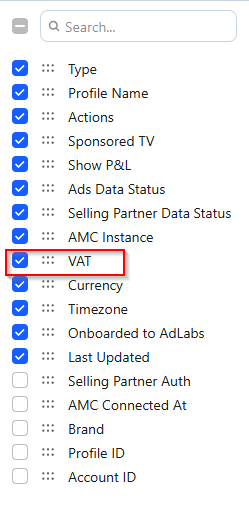
Under “Manage Profiles,” enable the VAT column, then add the appropriate percentage.
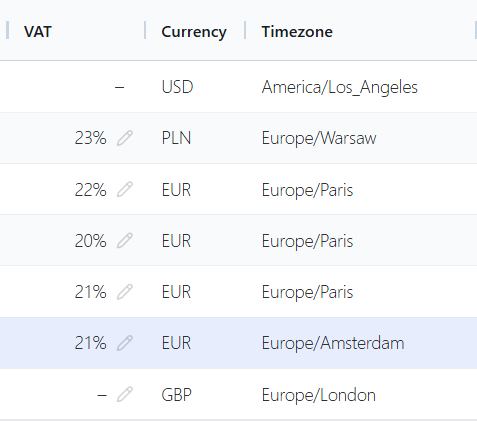
Amazon does not handle VAT the same way across regions. This matters because it changes which metrics AdLabs adjusts when you set a VAT rate.
For EU profiles, Amazon includes VAT in both Ad Sales (from the Ads API) and Total Sales (from Seller Central). AdLabs deducts VAT from both.
For UK profiles, Amazon already excludes VAT from Ad Sales. But Total Sales from Seller Central still includes it. AdLabs only deducts VAT from Total Sales/Seller Central metrics.

Amazon reports EU sales gross of VAT across the board. For UK profiles, Amazon already strips VAT from Ad Sales but still includes it in Seller Central/Total Sales.
If you've set a VAT rate on the profile, AdLabs deducts it from the relevant sales figures:
Spend, clicks, impressions, orders, and units are never adjusted, because Amazon doesn't add VAT to those. That's why only the sales column moves, and why ACOS reads higher (for EU profiles), since only the denominator shrinks.
Divide the Amazon sales figure by the AdLabs one. If it matches your VAT rate, that's your answer.
Example calculation below.
Amazon Ads Console | AdLabs | |
|---|---|---|
Clicks | 194 | 194 |
Orders | 61 | 61 |
Spend | €173.97 | €173.97 |
Sales | €515.86 | €429.88 |
ACOS | 33.72% | 40.50% |
Amazon Sales ÷ AdLabs Sales
€515.86 ÷ €429.88 = 1.20
→ 20% VAT
With VAT on, every ACoS in AdLabs, including the one the bid optimizer works against, is net of VAT.
Set your Target ACOS on that same net basis.
For example, a target carried over from gross Ads Console numbers will make the optimizer bid more conservatively than you intend.
Looking for how to update VAT for your AdLabs account for billing purposes? See below.
How to Update VAT for Billing
Adding and making changes to VAT
