
Overview
The AdLabs MCP gives your AI tool direct access to your advertising data and the ability to take actions on your behalf. What you can see and do through MCP mirrors your permissions in AdLabs. You'll only have access to the teams and profiles you can see in the dashboard.
What It Can Read
The MCP can pull data from every major section of AdLabs:
Campaigns, ad groups, and targets (PPC and DSP)
Search terms and Search Query Performance (SQP) data
Placements and placement bid adjustments
Products and advertised products
Audiences
Negative targets
Dayparting schedules
Optimization groups and tags
Automations
AMC query executions
Change history and job logs
What It Can Change
The MCP can also make changes to your account, including:
Pause or enable campaigns, ad groups, targets, and advertised products
Update campaign budgets and bid strategies
Change keyword and target bids
Adjust placement bid percentages
Assign or remove audiences and dayparting schedules
Create and manage tags and optimization groups
Revert previous optimizer or manual jobs
Pause or enable DSP campaigns and ad groups, update DSP budgets, bids, and CPM
Every write action requires a note explaining the reason for the change, which is logged in your change history for auditability.
How to Control Read vs. Write Access
Permissions are not configured inside AdLabs. Instead, you control what the MCP is allowed to do within your AI tool's connector settings.
For example, in Claude you can toggle read-only vs. read-and-write access in your connector preferences.
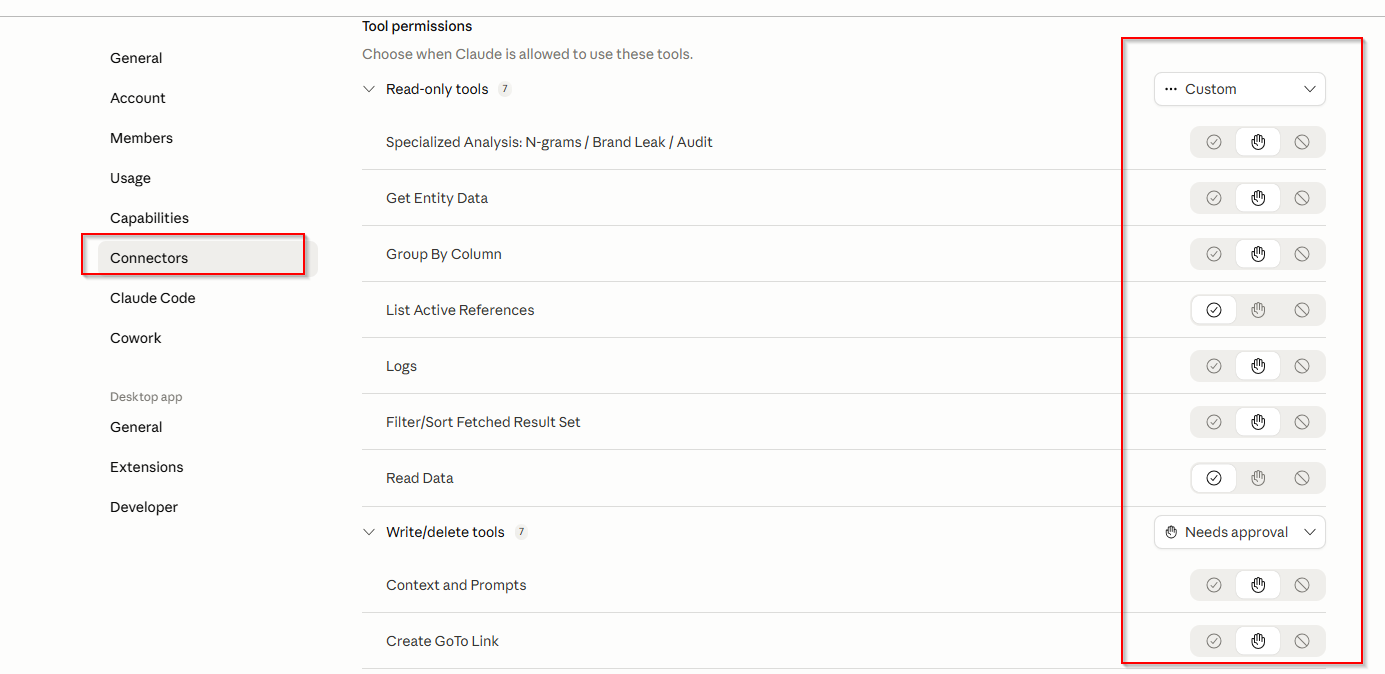
We recommend starting with read-only access until you're comfortable with how the MCP works, then enabling write access when you're ready.
Account-Level Access
A single MCP connection is tied to one AdLabs account. You'll see the same teams and profiles you have access to in the AdLabs UI. For more details on multi-account setup and agency permissions, see the help doc below.
MCP Access, Permissions & Multi-Account Setup
How MCP connections work with AdLabs accounts, team permissions, agency setups, and managing multiple accounts.